

Add the server to Upmind
The first step is to configure a new provision configuration. This is how you add web servers and domain providers via APIs.- Log in to your Upmind account.
- Click Settings.
- On the next page, click Provision configurations.
- Click the Add new configuration button to add a WHM server account. A new panel displays.
- The screenshot below shows two active services (domain hosting and web hosting).
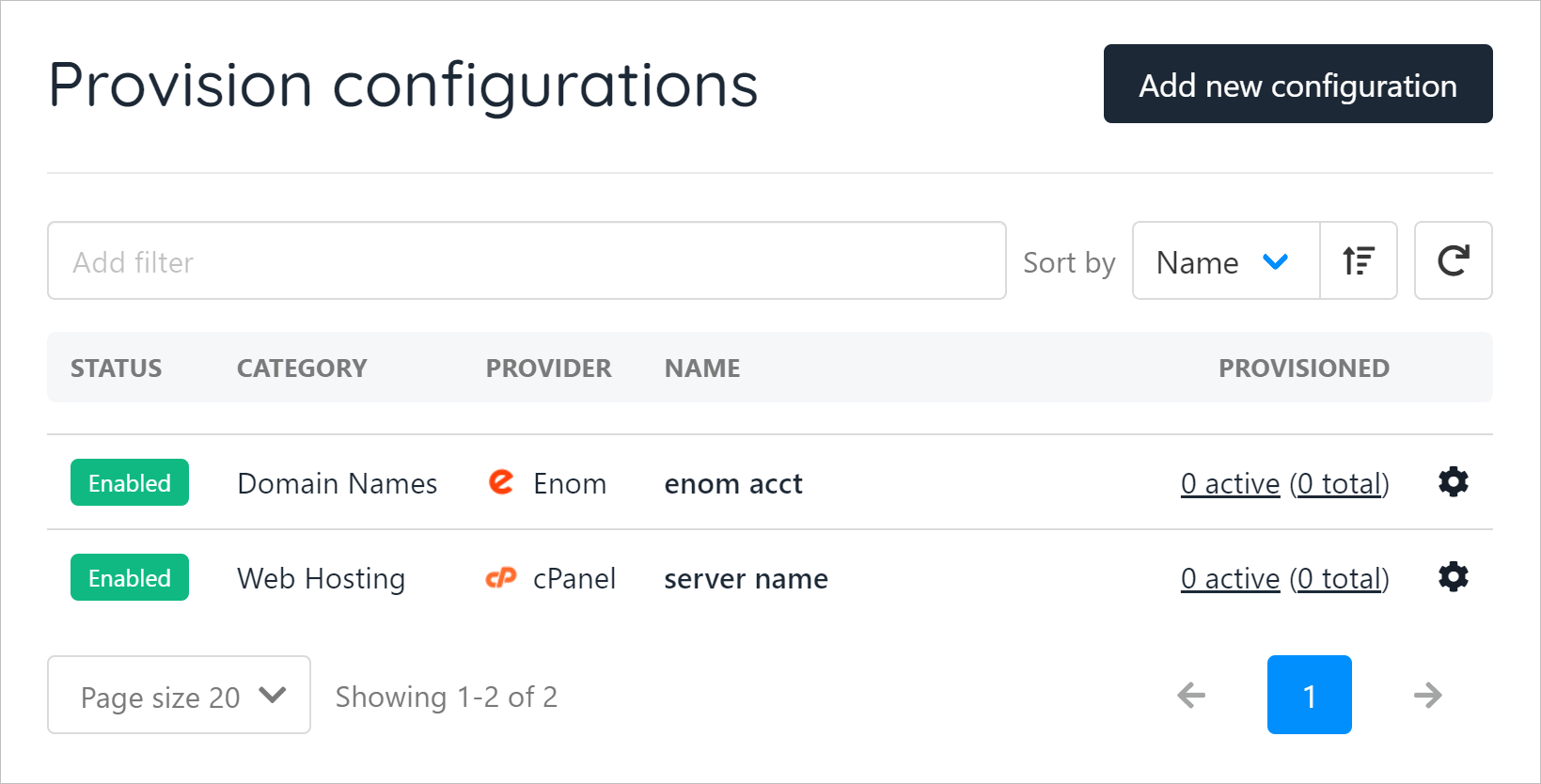 On the new panel:
- Enter a unique name for the service.
- Click the PROVISION CATEGORY field and select Web Hosting. A new field displays.
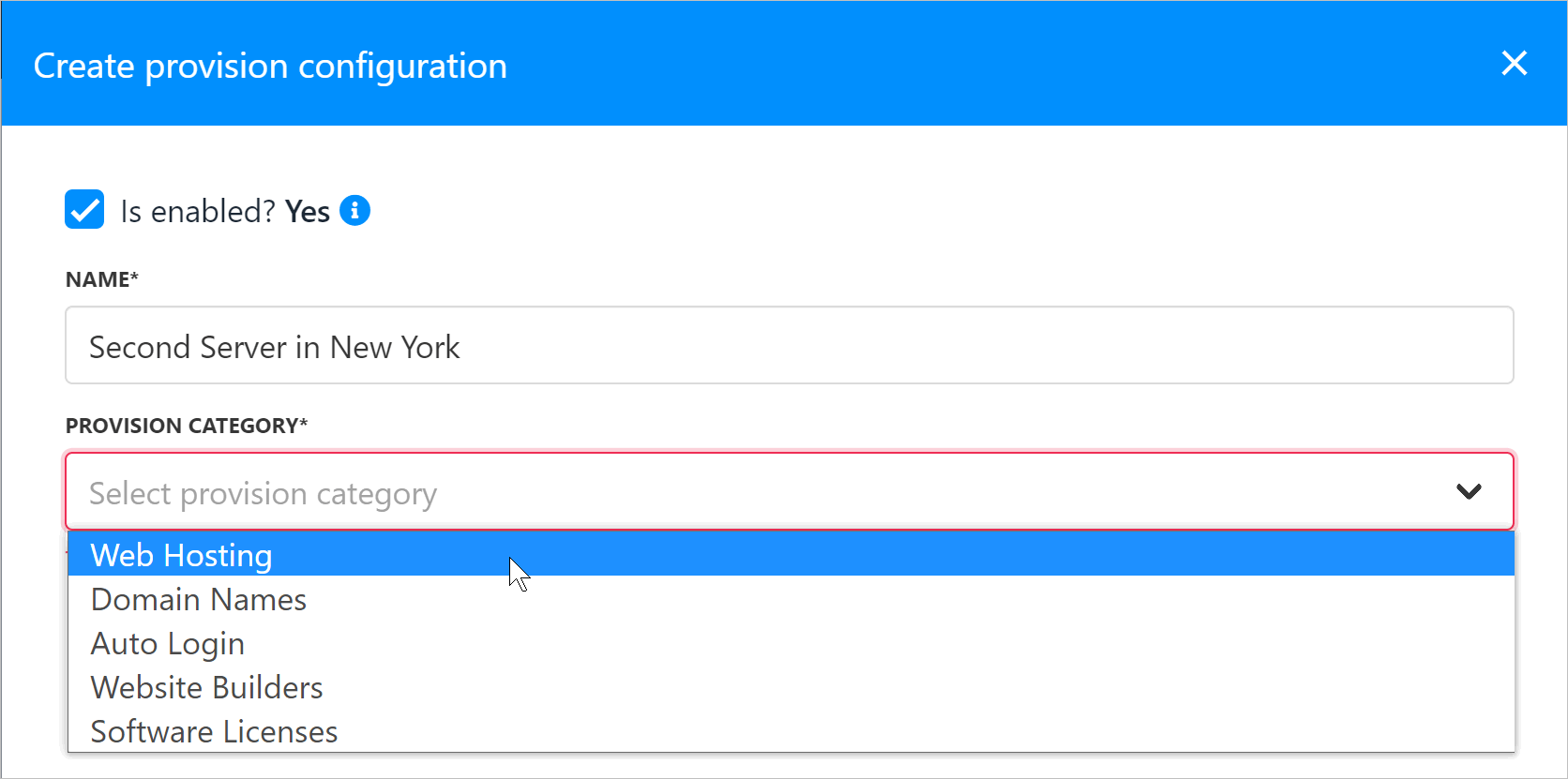
- Select cPanel
- Set the protocol (e.g. HTTPS).
- Enter the hostname. (see below)
- Enter 2087 for the port.
- Enter the WHM username. (see below)
- Enter the WHM API key. (see below)
- Enter the server location.
- Enter Stablepoint for hosting provider. Your clients will not see this.
- Check the box to accept new accounts.
- Click Create.
Copying WHM Information
To complete all the fields in the panel described above, you need to find and copy three pieces of information on your WHM account.- Hostname
- WHM Username
- API key
- Log in to your WHM
- The hostname is the server hostname
- The username is displayed on the top right
- The API key is accessed through WHM -> Manage API Tokens
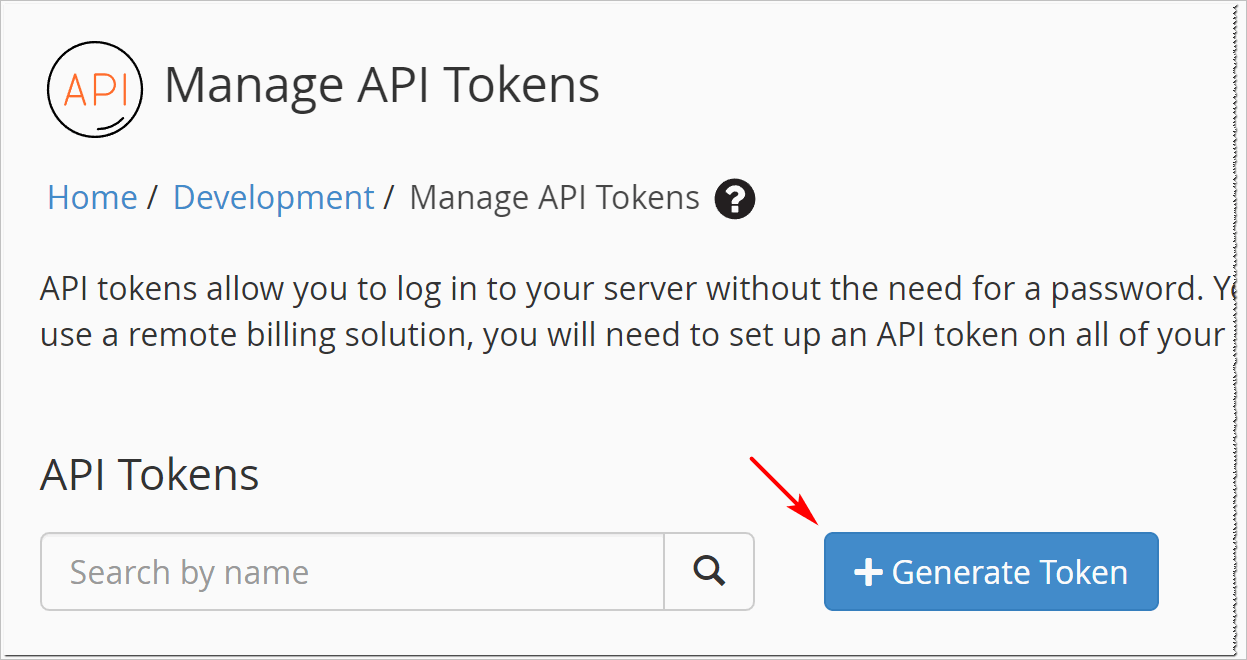
- On the next page, enter a token name.
- Click Save.
- Go back to the Upmind page and paste the value into the API Key field.