

Viewing orders
To view and manage your orders, follow these steps:- Log in to the Hosting Panel at https://clients.stablepoint.com.
- In the left sidebar, click Billing, and then click My Orders:
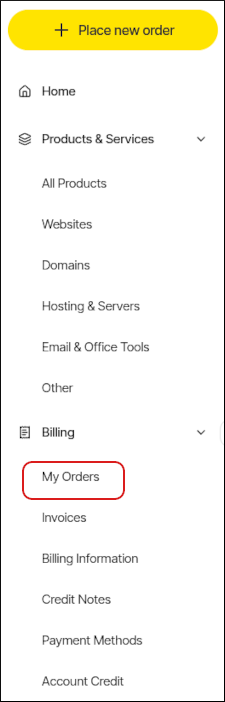
- On the Billing page, the My Orders tab appears:
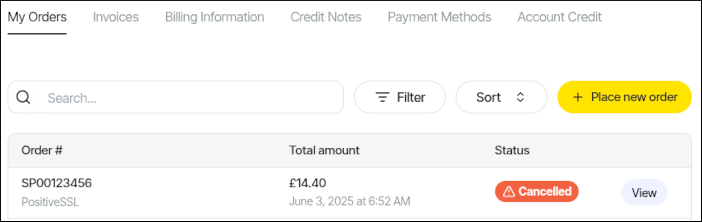
- On the My Orders tab, you can:
- Search for a specific order in the Search text box.
- Click Filter, and then filter the orders that appear in the list by selecting from a list of criteria.
- Click Sort, and then sort orders by date, status, and other criteria.
- Place a new order for additional products and services.
- To view an order in detail, click View.
Managing invoices
To view and manage your invoices, follow these steps:- Log in to the Hosting Panel at https://clients.stablepoint.com.
- In the left sidebar, click Billing, and then click Invoices:
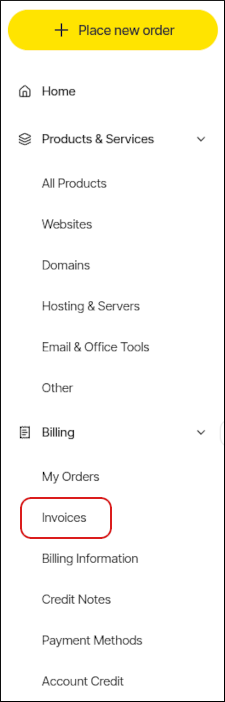
- The Invoices tab appears:
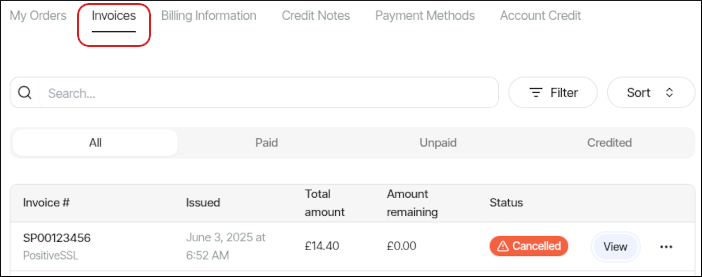
- On the Invoices tab, you can:
- Search for a specific invoice in the Search text box.
- Click Filter, and then filter the invoices that appear in the list by selecting from a list of criteria.
- Click Sort, and then sort invoices by date, status, and other criteria.
- To view an invoice in detail, click View.
- To download an invoice, click the three-dot menu, and then click Download.
- To pay an invoice, click the three-dot menu, and then click Pay invoice.
Setting billing information
You can specify your preferred currency and invoice consolidation options. To do this, follow these steps:- Log in to the Hosting Panel at https://clients.stablepoint.com.
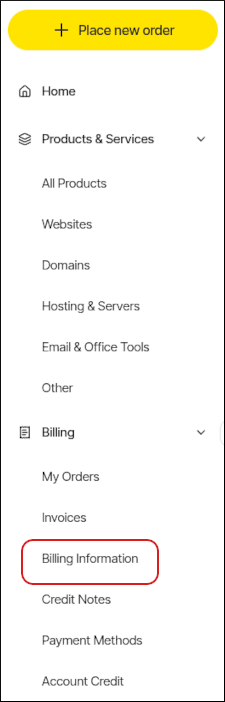
- In the left sidebar, click Billing, and then click Billing Information:
- The Billing Information tab appears:
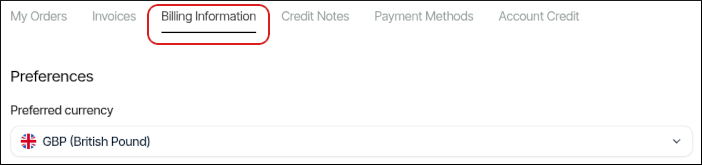
- Specify the preferences you want, and then click Save.
Managing credit notes
To view credit notes for your account, follow these steps:- Log in to the Hosting Panel at https://clients.stablepoint.com.
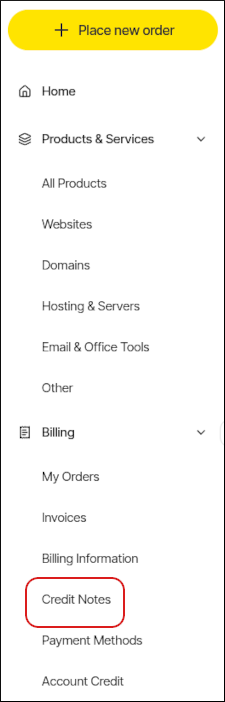
- In the left sidebar, click Billing, and then click Credit Notes:
- The Credit Notes tab appears:
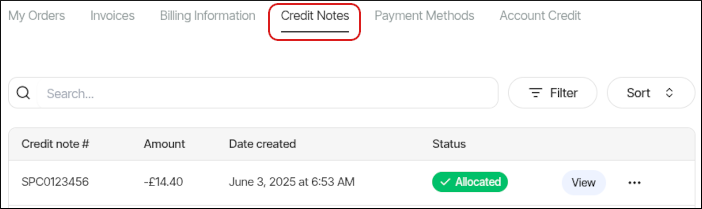
- On the Credit Notes tab, you can:
- Search for a specific credit note in the Search text box.
- Click Filter, and then filter the credit notes that appear in the list by selecting from a list of criteria.
- Click Sort, and then sort credit notes by date and other criteria.
- To view a credit note in detail, click View.
- To download a credit note, click the three-dot menu, and then click Download Credit Note.
Adding a payment method
To add a payment method to your account, follow these steps:- Log in to the Hosting Panel at https://clients.stablepoint.com.
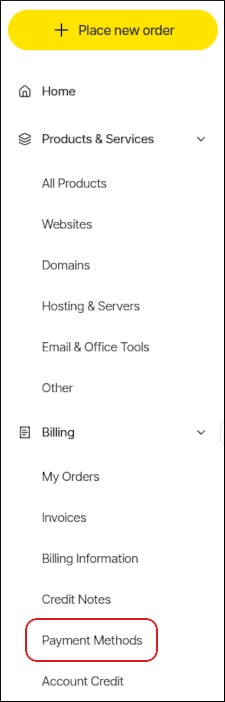
- In the left sidebar, click Billing, and then click Payment Methods:
- The Payment Methods tab appears:
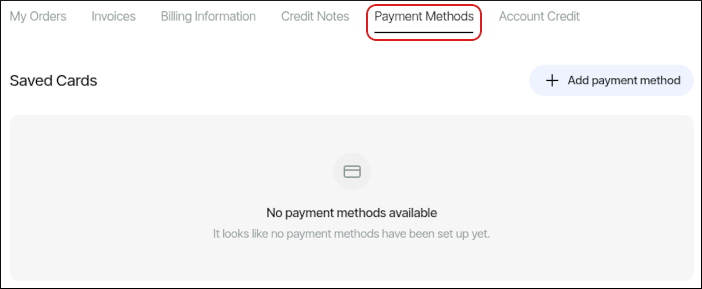
- Click Add payment method.
- In the Add a payment method dialog box, select one of the following:
- Credit or Debit Card: For a credit or debit card, specify the card details, and then click Add payment method.
- PayPal: For PayPal, we cannot save account details for future billing. However, you can still use PayPal when you complete an order.
- Bank Transfer: For bank transfers, we cannot save account details for future billing. However, you can still use a bank transfer when you complete an order.
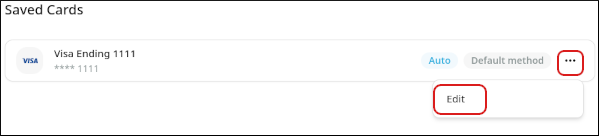
- After you add a payment method, it appears in the list of payment methods. To edit the payment method, click the three-dot menu, and then click Edit:
Managing account credit
To view and manage your account’s credit, follow these steps:- Log in to the Hosting Panel at https://clients.stablepoint.com.
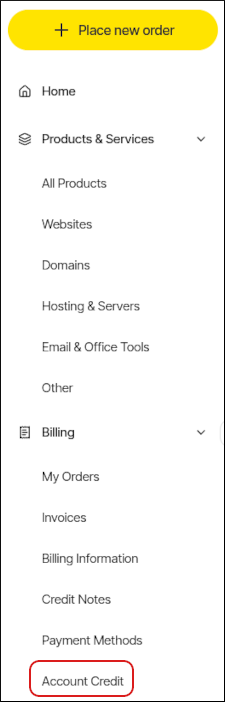
- In the left sidebar, click Billing, and then click Account Credit:
- The Account Credit tab appears:
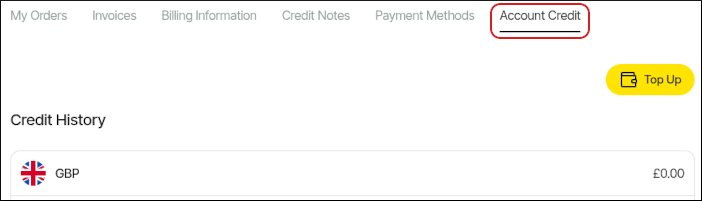
- To add credit to your account, click Top Up. You can add a credit card, debit card, or PayPal account.