> ## Documentation Index
> Fetch the complete documentation index at: https://kb.stablepoint.com/llms.txt
> Use this file to discover all available pages before exploring further.
# Viewing and changing settings for cPanel hosting accounts
> You can use the Stablepoint Hosting Panel to view and change login settings for a cPanel hosting account.
This article describes how to use the Stablepoint Hosting Panel to view and change settings for a cPanel hosting account.
## Viewing and changing account login settings
You can use the Stablepoint Hosting Panel to view the username and change your password for your cPanel hosting account.
Your cPanel hosting username and password is different from the e-mail address and password that you use to log in to the Stablepoint Hosting Panel. You use your cPanel hosting username and password to access cPanel, SSH, FTP, and more.
To view or change your cPanel account login settings:
1. Log in to the Hosting Panel at [https://clients.stablepoint.com](https://clients.stablepoint.com).
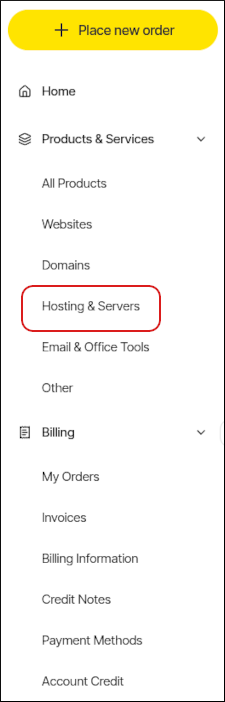
2. In the left sidebar, under **Products & Services**, click **Hosting & Servers**:
3. On the **Hosting & Servers** page, locate your hosting account, and then click **Manage**.
4. In the **General** section, details appear for your account, including:
* Your username.
* Nameserver information.
* Server name for your account.
* Account IP address.
* Account domain name.
5. To log in to your control panel, click **Login to Control Panel**:

In a separate window, the Hosting Panel automatically logs you in to your cPanel account.
6. To change your password, click **Change Password**:

In the **New password** text box, type your new password, and then click **Change password**.
Make sure you choose a strong password. A strong password helps protect your account.